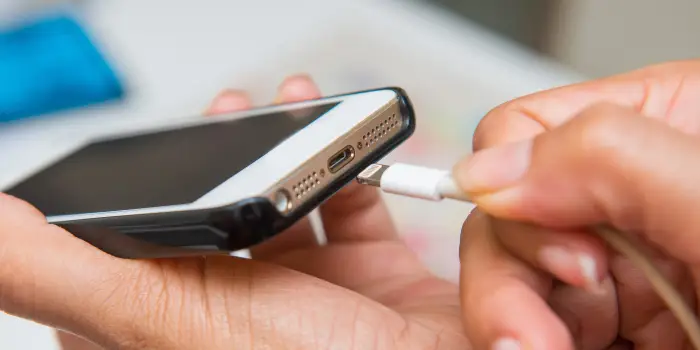
A frozen phone screen may stop responding to taps, swipes, buttons, or applications. The image remains visible, but nothing changes. This can happen because an app has crashed, the phone has insufficient memory, storage is full, the operating system encountered an error, or the device has overheated.
A frozen screen does not automatically mean the phone is permanently damaged. Start with simple steps and avoid repeated random button pressing.
Wait Briefly
Give the phone 20 to 30 seconds.
It may be processing a large file, installing an update, loading a demanding app, or completing a background task.
Pressing many buttons at once can make the situation more confusing.
Watch for changes in the display, sound, vibration, or temperature.
Try the Home or Power Button
Press the home or power button once.
If the phone responds, close the application causing the problem.
Do not repeatedly press and hold the power button unless you intend to force a restart.
The issue may be limited to one frozen app rather than the entire system.
Force Close the Application
Open the recent-apps screen if possible and remove the frozen app.
Wait several seconds and reopen it.
If it freezes again, update or reinstall it.
Helpful smartphone troubleshooting guides can explain how application crashes and memory problems affect screen response.
Force Restart the Phone
A force restart uses a specific button combination to reboot an unresponsive device.
The correct combination varies by manufacturer and model.
It normally does not delete personal information.
Use the official instructions for Your device rather than guessing.
Allow the Phone to Cool
Excessive heat can cause the processor to slow down or stop demanding tasks.
Move the phone away from sunlight and disconnect the charger.
Remove the case and place the device in a shaded, ventilated area.
Do not use ice, a refrigerator, or a freezer.
Charge the Battery
A nearly empty battery may cause unstable behavior.
Connect the phone to a working charger and leave it for at least 20 to 30 minutes.
Use a reputable cable and adapter.
If the phone is hot, let it cool before charging.
Clean and Dry the Screen
Moisture, grease, dirt, gloves, and some screen protectors can interfere with touch response.
Wipe the screen with a clean microfiber cloth.
Dry your hands and remove gloves.
Test without the case or screen protector if the problem affects only touch input.
Remove Connected Accessories
Disconnect charging cables, headphones, USB devices, and external adapters.
Turn off Bluetooth accessories temporarily.
A faulty accessory may cause software conflicts or unusual input behavior.
Restart the phone after removing them.
Update the Problematic App
Open the official app store after the phone responds.
Install an update for the application that froze.
Read recent reviews to see whether other users report the same problem.
Avoid unofficial or modified versions.
Update the Operating System
Install stable system updates.
They may correct display, memory, application, and performance problems.
Create a backup before a major upgrade.
Restart after installation.
Free Storage Space
A phone with almost no storage may freeze repeatedly.
Delete unnecessary videos, downloads, offline entertainment, and unused apps.
Empty recently deleted folders.
Keep at least 10% to 20% of storage free.
Practical mobile performance methods often focus on storage because the operating system needs working space for temporary files.
Close Background Applications
Many demanding apps open at once can use available memory.
Close games, browsers with many tabs, editors, and streaming services.
Restart the phone before opening the app you need.
Avoid third-party RAM boosters because the operating system normally manages memory more safely.
Clear App Cache
Android users can clear temporary cache files for a problem application.
Open its storage settings and select Clear Cache.
Do not select Clear Data unless you understand what will be removed.
Reinstalling may provide a similar result on other devices.
Check Accessibility and Overlay Apps
Screen filters, floating buttons, call recorders, and accessibility services can interfere with touch behavior.
Disable recently installed tools and test the phone.
Review permissions for apps allowed to appear over other apps.
Remove unfamiliar software.
Use Safe Mode
Android safe mode disables most downloaded applications.
If the phone stops freezing in safe mode, a third-party app is probably responsible.
Remove recently installed apps one at a time.
Restart normally after each change.
Protect Your Data
Repeated freezing can indicate failing storage, battery, or other hardware.
Back up photographs, messages, contacts, documents, and authentication information as soon as the phone becomes usable.
Following secure backup practices reduces the risk of losing personal information if the problem becomes worse.
Reset Settings
A settings reset may correct configuration conflicts without deleting ordinary files.
Read the option carefully because a factory reset is different.
Record Wi-Fi passwords and important preferences.
Test the phone before changing many settings again.
Factory Reset as the Final Software Step
A factory reset deletes accounts, applications, files, and settings.
Use it only after creating a complete backup.
After the reset, reinstall applications gradually.
If freezing returns before many apps are installed, hardware may be responsible.
Check for Suspicious Software
Malware or aggressive apps can consume memory and interfere with the interface.
Review recently installed software and unusual permissions.
Remove unknown cleaners, launchers, keyboards, and modified applications.
Reliable mobile security resources can help identify suspicious behavior connected to repeated freezing.
Look for Hardware Damage
A drop, bent frame, cracked display, liquid exposure, or failing touchscreen may cause freezing or unresponsive areas.
Test whether only one section of the screen fails.
Professional inspection may be required when the problem follows physical damage.
Do not continue pressing a swollen or separating screen.
Seek Professional Repair
Repair is appropriate when force restarting fails, the phone freezes constantly, the display is damaged, or the battery is swollen.
Back up data before repair whenever possible.
Explain exactly when the freezing started and what steps you already tried.
A frozen phone screen often responds to waiting, closing the app, force restarting, cooling the device, creating storage space, and installing updates. Repeated freezing should not be ignored. Back up important information and seek professional help when software fixes do not provide a lasting solution.